


My Account

Cart Check Out
International Point of Sale International Point of Sale
[ Home ] [ Software ] [ Hardware ] [ Complete Systems ] [ About Us ] [ Download ] [ Free Quote ]
Products
>> Barcode Scanners
>> Card Swipers
>> Cash Drawers
>> Cash Registers
>> Check Readers
>> Complete POS
>> Keyboards
>> Label Printers
>> Labels
>> Pole Displays
>> Portable Terminals
>> Posiflex Jiva
>> Price Checkers
>> Printheads
>> Receipt Printers
>> RFID Printers
>> Ribbons
>> Signature Pads
>> Touchscreens
News
  Check out the full article library
 

5.31.2006


Restaurant Pro Express is used by employees
POS Solution for Restaurants

Read more articles.....


12.23.2004


Liquor POS system
Liquor Store Point of Sale Solution

Read more articles.....


3.20.2005


C-Store POS system
The Best Convenience Store POS

Read more articles.....


04.01.2004


Labels, Ribbons, and Printheads available for printers
Labels, Ribbons, and Printheads

Read more articles.....


02.13.2004


All makes of barcoder readers available
Barcode Scanners 101

Read more articles.....


10.15.2004


Symbol SPT1550 pocket data register and terminal
Choosing a portable Point of Sale System

Read more articles.....

  10.07.2004  
 
How much should a POS computer system cost?
How much should you spend on a POS system?
Read more articles.....
1
Features and Benefits


International Point of Sale brings you the best in POS hardware and software, all at an affordable price. Any type of retail store can benefit from our wide selection of products designed to make your business more profitable. We have dedicated service professionals available day and night to take care of your business needs."


Library
 

Friendly Printer Setup Part Two: Remote or Kitchen Printers

1. When setting up a remote printer, example:at the bar or in the kitchen. You will first have to add it to the friendly printer list. You do this by clicking add from the friendly printer screen and giving it a name like "KITCHEN".
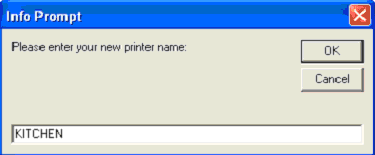
Printer Friendly Setup

2. Now select the driver for your newly added printer. All the rules from Part 1, Step 4 apply. The only difference is that you will see the new printer on the friendly printer list.
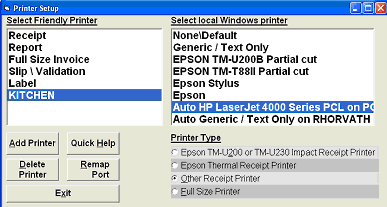
Printer Setup screen

3. If you have multiple remote printers just repeat the previous two steps until all of your printers are accommodated.

Inventory Maitenance 4. Now that the remote printers have been labeled and linked to the drivers you are ready to assign which items will print to each remote printer. To do this you must go to Inventory Maintenance and click the Printers tab.

5. On the bottom left you can see the current item you are on. Once you are on an item that you would like to print to a remote printer just click on the Add Friendly Printer button and choose which printer you would like it to print to. Once you select the printer just click update, now that item will print to the selected printer when you have it on an invoice and put on hold or end the transaction.

Part One: Friendly Printer Setup


Return to the POS library.


Contact Us for the Best Deals Anywhere: 1-866-468-5767

 

Home | Articles | POS Software | POS Hardware | Complete Systems | About Us | Download

POS Software | Receipt Printer | Barcode Scanner | Pole Display | Inventory Management
Credit Card Swiper | Cash Drawer | Label Printing | Portable Terminal
Site Map 2 3 full
sales@internationalpointofsale.com


© 2006 International Point of Sale 1-866-468-5767 or 201-928-0222