

My Account

Cart Check Out
International Point of Sale International Point of Sale
[ Home ] [ Software ] [ Hardware ] [ Complete Systems ] [ About Us ] [ Download ] [ Free Quote ]


Live Chat

Products

>> Barcode Scanners
>> Card Swipers
>> Cash Drawers
>> Cash Registers
>> Check Readers
>> Complete POS
>> Keyboards
>> Label Printers
>> Labels
>> Pole Displays
>> Portable Terminals
>> Posiflex Jiva
>> Price Checkers
>> Printheads
>> Receipt Printers
>> RFID Printers
>> Ribbons
>> Signature Pads
>> Touchscreens
News
  Check out the full article library
 

5.31.2006


Restaurant Pro Express is used by employees
POS Solution for Restaurants

Read more articles.....


7.07.2005


Swiping a barcode with a laser scanner
Home Decor Store computerizes with CRE

Read more articles.....


12.23.2004


Liquor POS system
Liquor Store Point of Sale Solution

Read more articles.....


3.20.2005


C-Store POS system
The Best Convenience Store POS

Read more articles.....


02.13.2004


All makes of barcoder readers available
Barcode Scanners 101

Read more articles.....


10.15.2004


Symbol SPT1550 pocket data register and terminal
Choosing a portable Point of Sale System

Read more articles.....


Library
 

A Quick Tutorial for Cash Register Express

A fully working test version of Cash Register Express (CRE) is available so you can try it out and feel comfortable with it before you decide to purchase it. International Point of Sale's goal is for each customer feels confident with their pos software decision before, during, and after the sale. Follow this quick tutorial to learn the basic steps and see what you can do with Cash Register Express. If you have any questions please give a call to one of the knowledgeable representatives standing by at (866)468-5767

Step 1: Download
Download the program. Cash Register Express can be downloaded from the International Point of Sale web site. It is a 20 MB download, if you do not have access to a fast internet connection realize this may take some time to download. If you do not have an internet connection at all please call us at (866) 599-1487 and we will mail you a CD that contains Cash Register Express.

Step 2: Installation
After downloading CRE, locate the file that was downloaded and double click it. The file will be named cre200f.exe. The program will then install itself on your computer.

Step 3: Start the Program
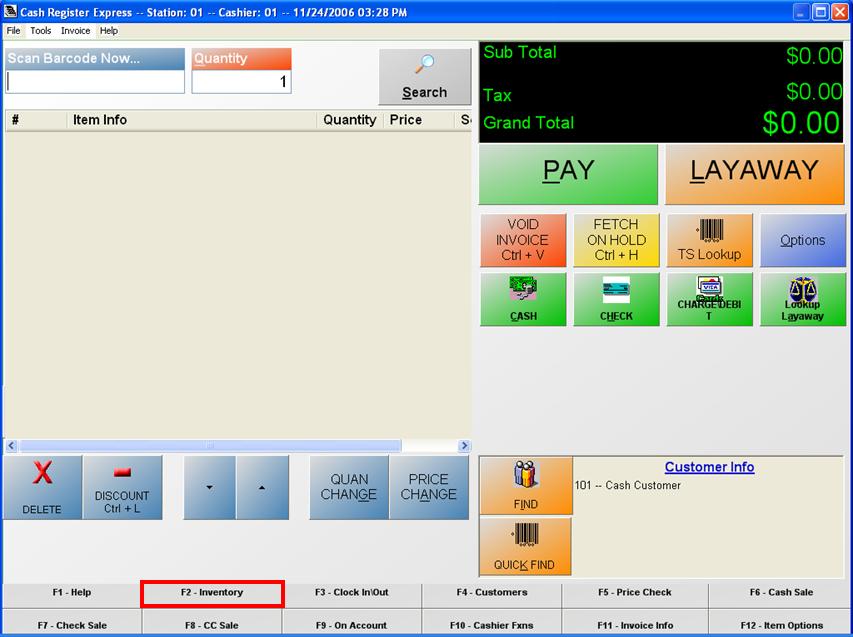
In your program menu there should now be a program named CRE 2002. Click on this. When the program starts for the first time there will be several setup screens. Follow the instructions given, these screens let you setup the pos software as a retail store, a restaurant, or a corporate office for a chain store you also have the option let to try out a sample database. When you arrive at a screen that asks for your password put in 'admin'. After you hit accept main Cash Register Express invoice screen should open.

Follow the steps below to learn the basic functions of CRE:

Step 4: Add a Department

Step 5: Add a Vendor

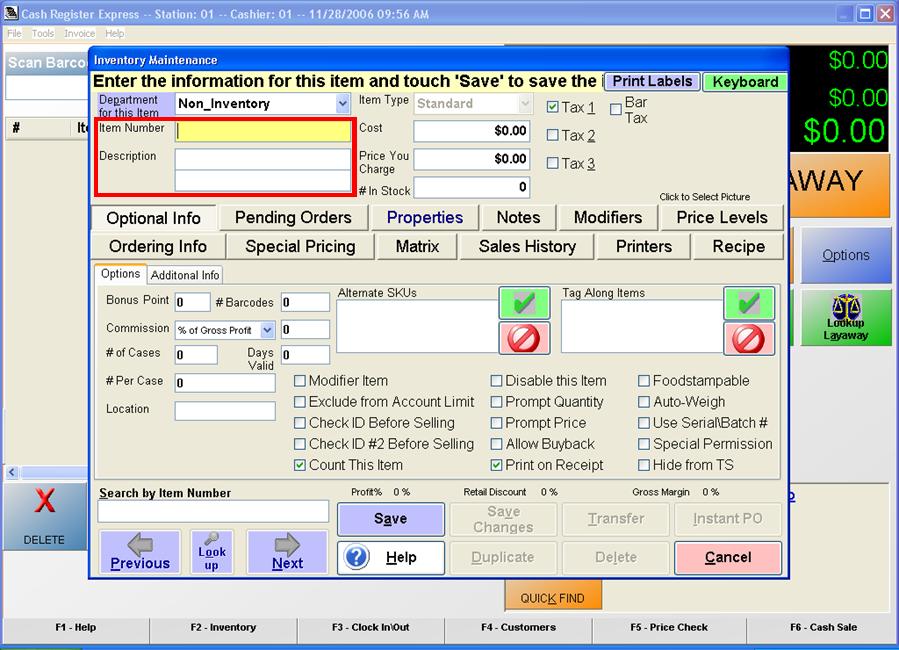
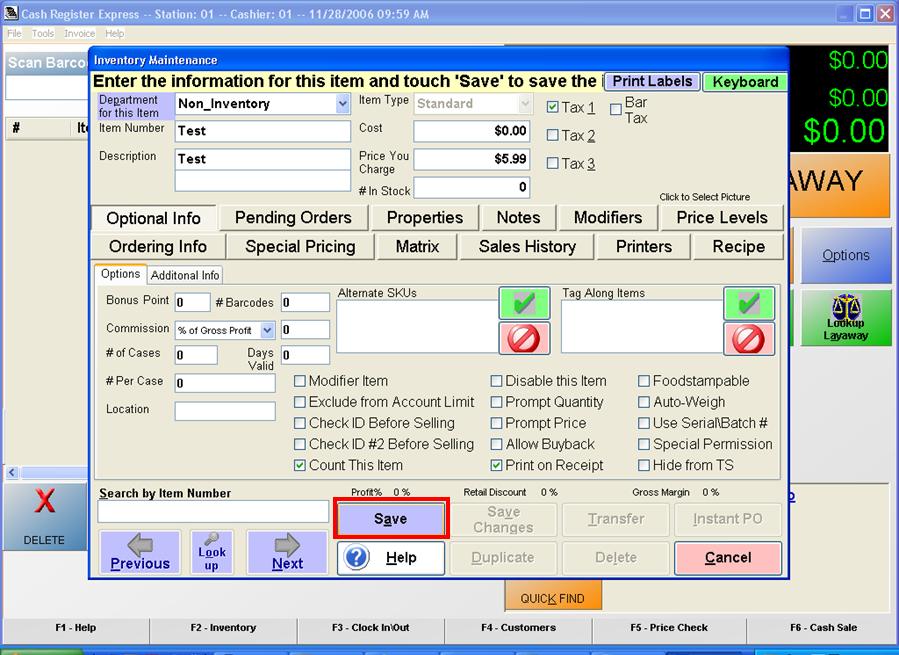
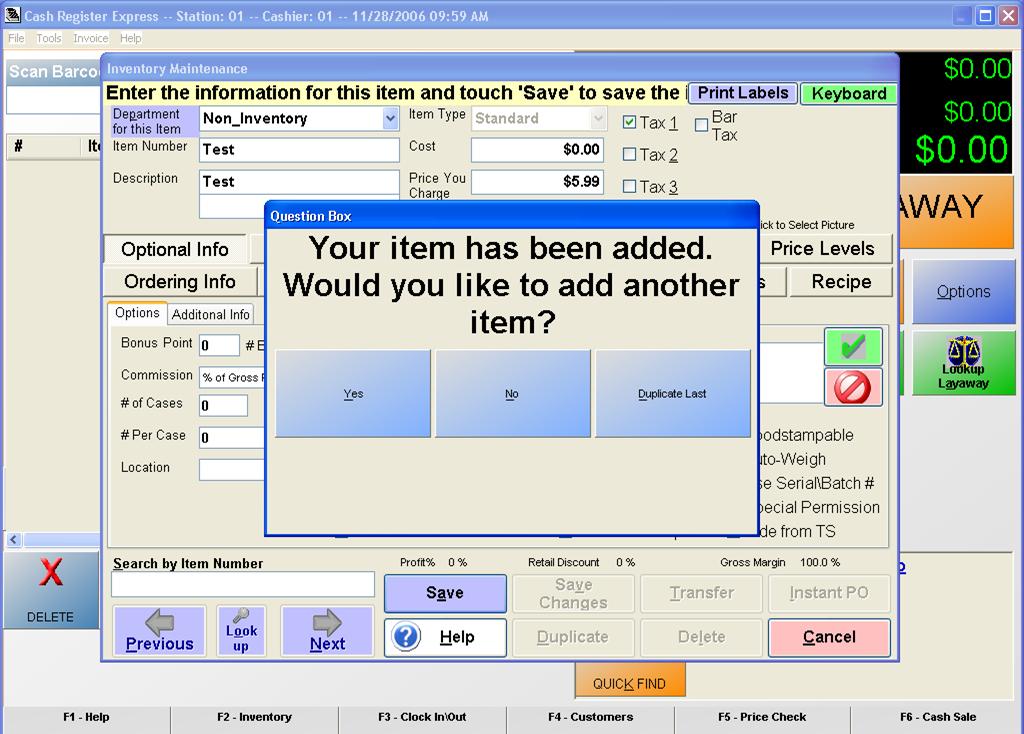
Step 6: Add an Inventory Item

Step 7: Add a Customer

Step 8: Process a Cash Transaction


Return to the POS library.


Contact Us for the Best Deals Anywhere: 1-866-468-5767

 

Home | Articles | POS Software | POS Hardware | Complete Systems | About Us | Download

POS Software | Receipt Printer | Barcode Scanner | Pole Display | Inventory Management
Credit Card Swiper | Cash Drawer | Label Printing | Portable Terminal
Site Map 2 3 full
sales@internationalpointofsale.com


© 2006 International Point of Sale 1-866-468-5767 or 201-928-0222