


Add New Inventory Items
Solve any Cash Register Express related questions on our forum
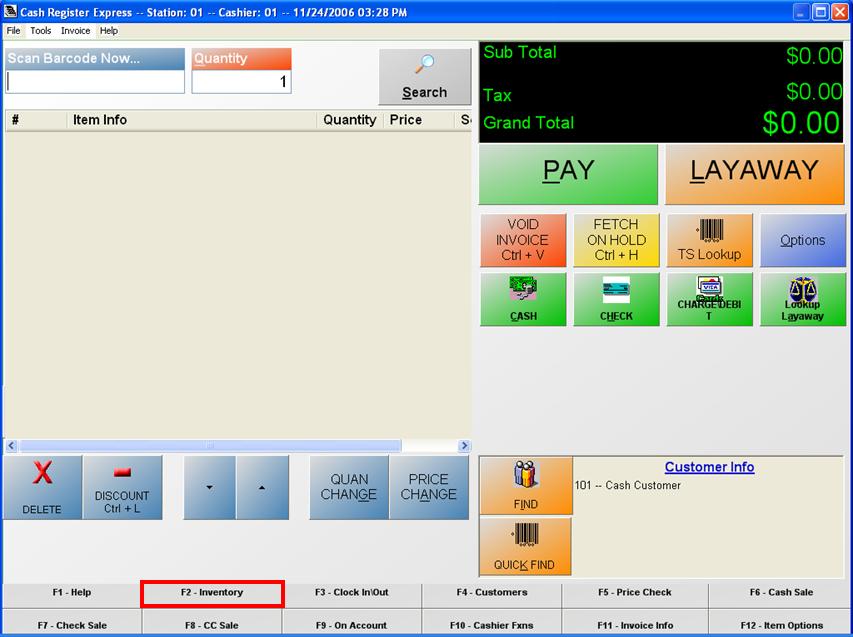
By adding an Inventory, it allows Cash Register Express users to have a larger control what is on their shelves. By entering your inventory you will know when to re-order and how much of each item you should have. The following steps are straightforward and very easy to follow.
STEP ONE
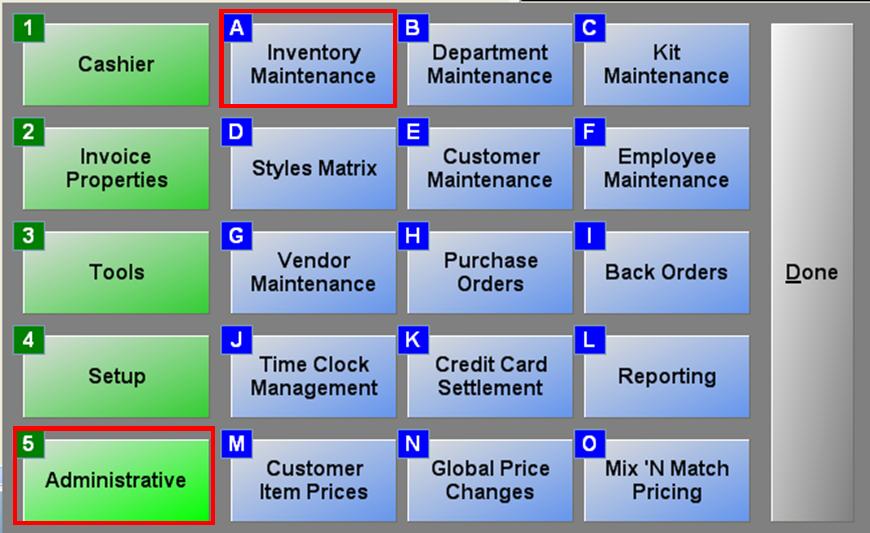
To begin adding your inventory, you can click on F2 found at the top left hand side of your keyboard. Another option is to click on 'Options', then 'Administrative', and finally 'Inventory Maintenance'.
STEP TWO
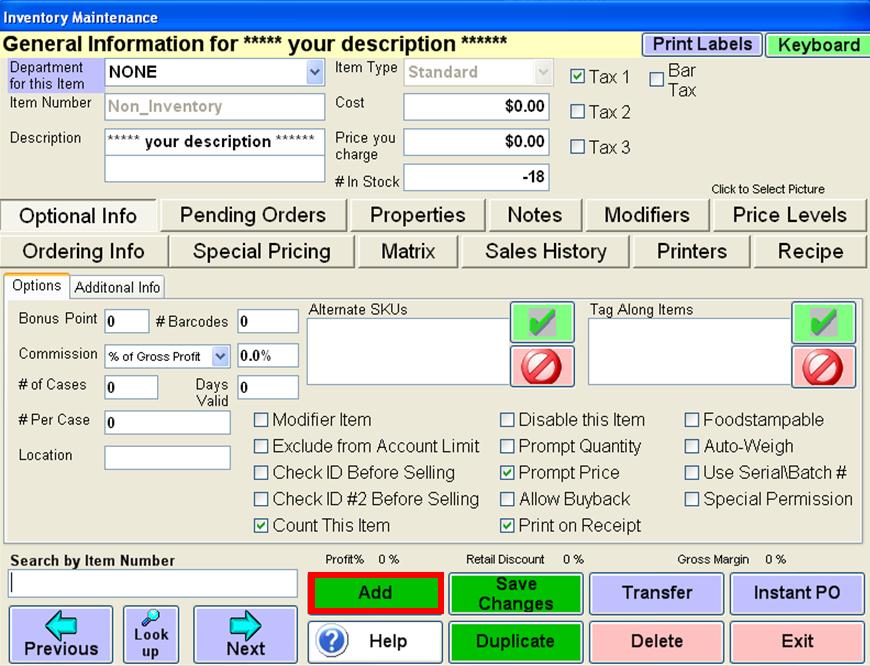
Once the Inventory Maintenance screen has been accessed, Click on the ADD button. By doing so, you will be permitted to start adding your inventory.
STEP THREE
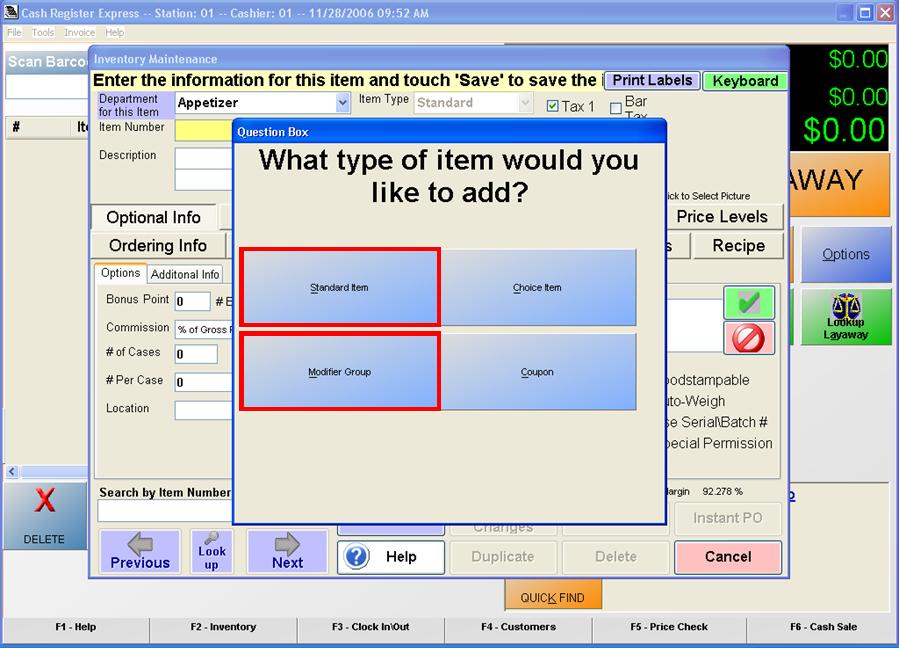
You will be given a choice, after you click the Add Button, as to what type of item you would like to add.
Select the Standard Item button for standard inventory items. Select Modifier Group if you are making a modifier group. So on and so forth.
STEP FOUR
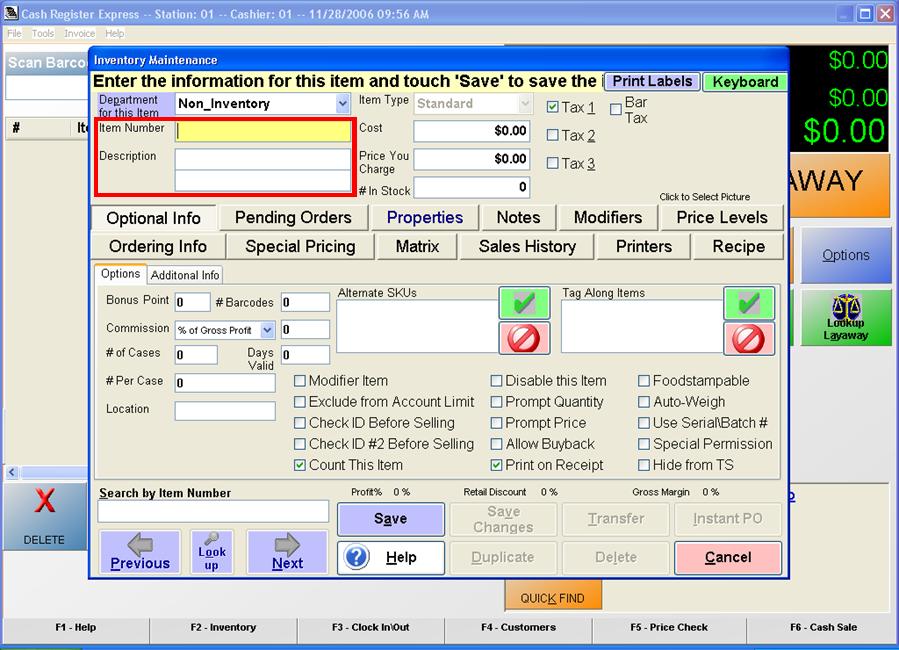
To move from one field to another when creating an item, you can either use your TAB button on your keyboard or your mouse button.
Please Take Note: Item Number and Item Description are Required fields. You MUST enter an item number and item description for each field.
STEP FIVE
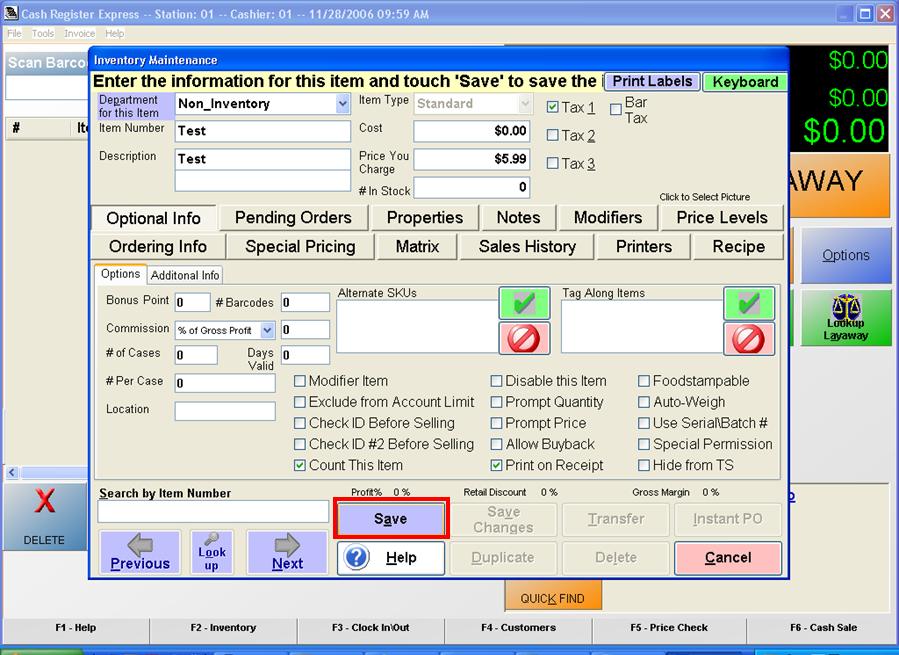
Make sure to select Save when you
are done creating your new inventory item.
FINAL STEP
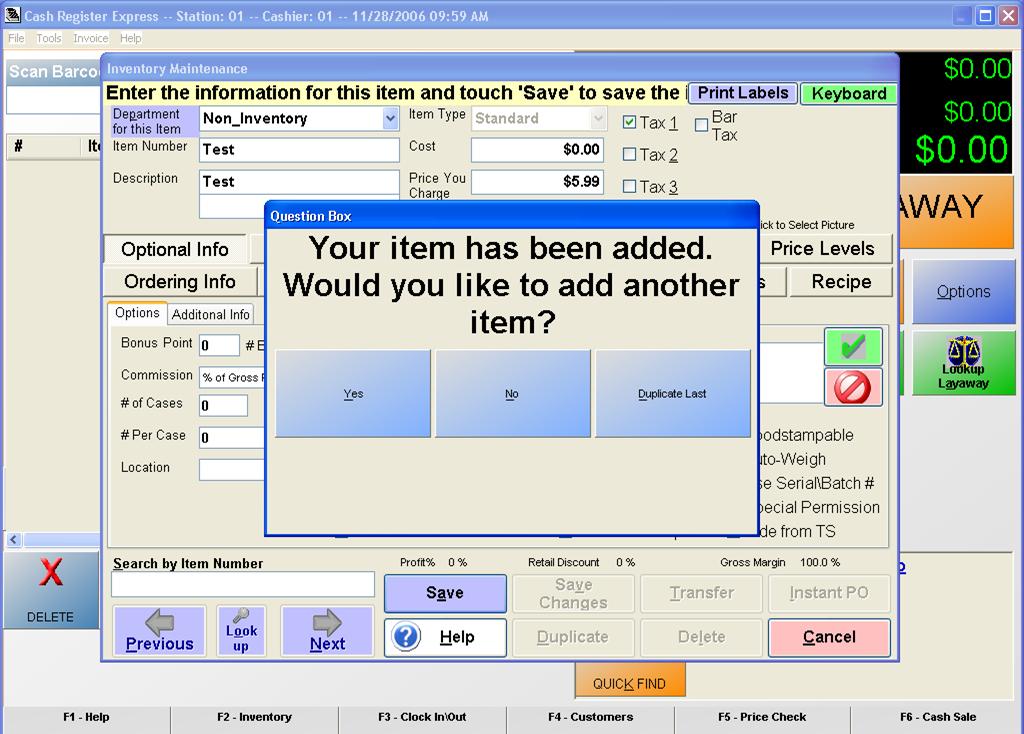
Once the item has been saved, you will be prompted as to what you would like to do next. You may Add another item to inventory, Quit creating inventory, or Duplicate the last item you created.
Contact Us for the Best Deals Anywhere: 1-866-468-5767
